How to Delete Search History on iPhone: Complete Guide (2026)
Introduction
Your iPhone knows a lot about you. Every website you visit, every search you type, and every link you click gets stored somewhere in your device. Over time, this search history can pile up and become a privacy concern or just clutter you want to clear out.
Maybe you share your phone with family members. Maybe you just value your privacy. Or perhaps your browser feels sluggish and needs a fresh start. Whatever your reason, knowing how to delete search history on iPhone is an essential skill every user should have.
The good news? It’s actually pretty simple once you know where to look. In this guide, I’ll walk you through every method to clear your search history across Safari, Chrome, Firefox, and other apps. You’ll also learn how to set up automatic clearing and protect your privacy going forward.
Let’s dive in.
Why You Should Delete Your Search History Regularly
Before we get into the how, let’s talk about the why.
Your search history isn’t just a list of random websites. It’s a detailed record of your interests, concerns, shopping habits, and personal life. If someone gets access to your phone, they can see everything you’ve been looking up.
Here are a few good reasons to clear it regularly:
Privacy protection. Keeping your browsing habits private is important, especially if you share your device or use public Wi-Fi networks.
Free up storage space. Cached data and browsing history can take up surprising amounts of storage over time.
Improve browser performance. A cluttered browser can slow down. Clearing history often helps things run smoother.
Prevent embarrassing moments. Auto-suggestions based on past searches can pop up at the worst times.
If any of these resonate with you, it’s time to take control of your search history.
How to Delete Search History on iPhone in Safari
Safari is the default browser on iPhone, so most people will want to start here. Apple makes it fairly easy to clear your history, but there are a few different ways to do it depending on what you want to delete.
Clear All Safari History and Website Data
This method wipes everything: your browsing history, cookies, and cached files.
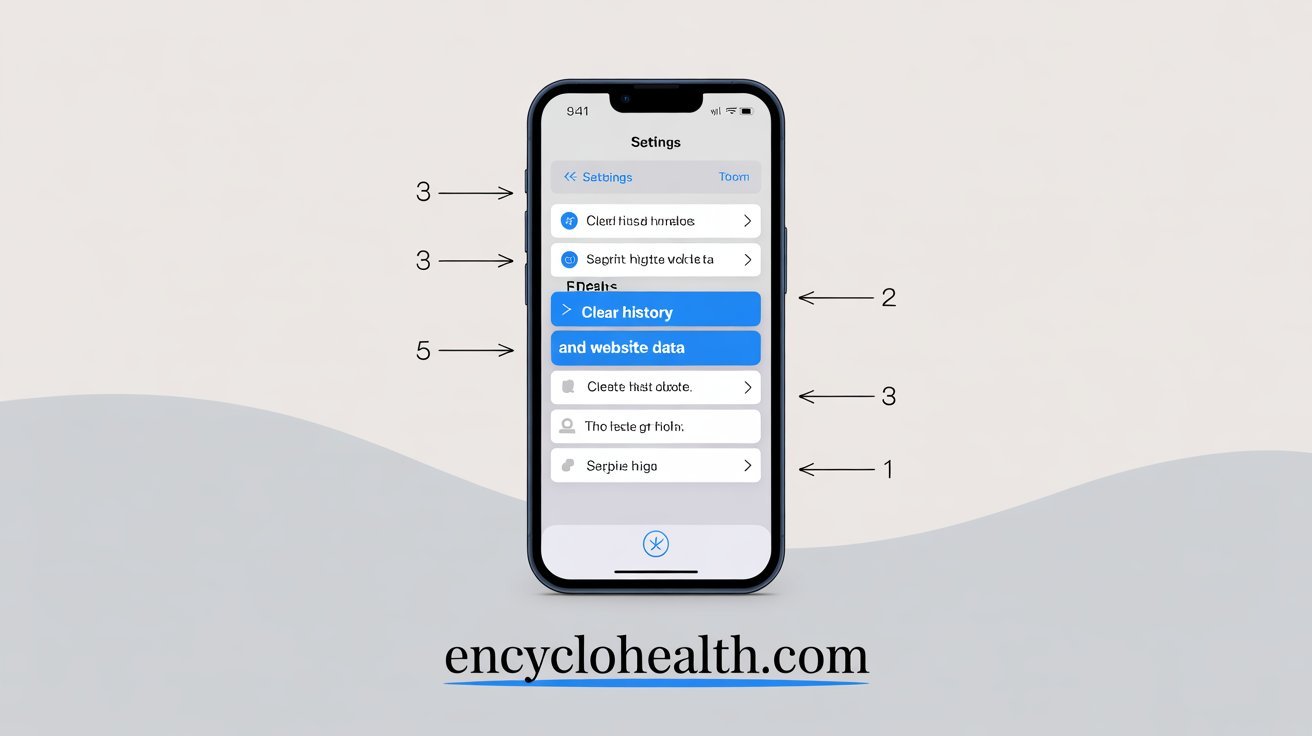
Open the Settings app on your iPhone. Scroll down and tap Safari. Scroll down again until you see Clear History and Website Data. Tap it.
A popup will appear asking you to confirm. Tap Clear History and Data again.
Done. Your Safari history is now completely wiped from your device.
Keep in mind this affects all devices signed into your iCloud account. If you use iCloud to sync Safari across your iPhone, iPad, and Mac, this action will clear history on all of them.
Delete Individual Sites from Safari History
Maybe you don’t want to nuke everything. Maybe you just want to remove a specific website or two.
Open Safari and tap the book icon at the bottom (it looks like an open book). Tap the clock icon to view your history. Find the site you want to delete and swipe left on it. Tap Delete.
You can also tap Edit in the bottom right corner, select multiple sites, and delete them all at once.
This gives you more control without wiping your entire browsing record.
Use Private Browsing Mode
If you want to avoid leaving a history trail in the first place, use Private Browsing mode.
Open Safari and tap the tabs icon (two overlapping squares in the bottom right). Tap Private in the lower left corner. Tap the plus icon to open a new private tab.
When you browse in Private mode, Safari won’t save your history, cookies, or AutoFill information. Just remember to close those tabs when you’re done, or they’ll still be there next time you open Safari.
How to Delete Search History in Google Chrome on iPhone
If you prefer Chrome over Safari, the process is a little different but just as easy.
Clear All Browsing Data in Chrome
Open the Chrome app on your iPhone. Tap the three dots in the bottom right corner. Tap Settings. Tap Privacy and Security. Tap Clear Browsing Data.
You’ll see options for what to clear: Browsing history, Cookies, and Cached images and files. Select what you want to delete. Choose a time range: Last hour, Last 24 hours, Last 7 days, Last 4 weeks, or All time. Tap Clear Browsing Data at the bottom.
Confirm by tapping Clear Browsing Data again.
Your Chrome history is now wiped.
Delete Individual Sites in Chrome
Open Chrome and tap the three dots in the bottom right. Tap History. Find the site you want to remove and swipe left on it. Tap Delete.
You can also tap Edit at the bottom, select multiple items, and delete them together.
Use Incognito Mode in Chrome
Just like Safari’s Private Browsing, Chrome has Incognito mode.
Open Chrome and tap the three dots. Tap New Incognito Tab.
Your activity in Incognito mode won’t be saved to your history. When you’re done, close the tab to remove all traces.
How to Delete Search History in Other Browsers
Not everyone sticks with Safari or Chrome. If you use Firefox, Microsoft Edge, DuckDuckGo, or Brave, here’s how to clear your history in each.
Firefox
Open Firefox and tap the three lines (hamburger menu) at the bottom right. Tap Settings. Tap Data Management. Toggle on Browsing History and any other data you want to clear. Tap Clear Private Data.
Microsoft Edge
Open Edge and tap the three dots at the bottom. Tap Settings. Tap Privacy and Security. Tap Clear Browsing Data. Select what to clear and the time range. Tap Clear Now.
DuckDuckGo
DuckDuckGo is privacy-focused, so it doesn’t track your searches by default. But if you want to clear your tabs and data, just tap the flame icon at the bottom and choose Close Tabs and Clear Data.
Brave
Open Brave and tap the three dots at the bottom. Tap History. Tap Clear Browsing Data. Select what to clear and tap Clear Data.
How to Delete App Search History on iPhone
It’s not just browsers. Apps like YouTube, Amazon, Instagram, and Maps also keep track of your searches.
YouTube
Open YouTube and tap your profile icon. Tap Settings. Tap History & Privacy. Tap Clear Search History.
Amazon
Open the Amazon app and tap the search bar. Tap View All under recent searches. Swipe left on any search and tap Remove. Or tap Clear All to wipe everything.
Open Instagram and tap the three lines in the top right. Tap Settings and Privacy. Tap Account Center. Tap Your Information and Permissions. Tap Search History. Tap Clear All or delete individual searches.
Apple Maps
Open the Maps app and tap your profile icon. Scroll down and tap Clear Search History. Confirm by tapping Clear.
Each app handles search history a little differently, but most make it easy to clear once you know where to look.
How to Automatically Delete Search History on iPhone
If you want to stay on top of your privacy without manually clearing history every week, you can automate it.
Set Safari to Auto-Delete History
Unfortunately, Safari doesn’t have a built-in auto-delete feature. But you can use Screen Time to limit how long data is kept.
Go to Settings > Screen Time > Content & Privacy Restrictions. Turn on restrictions if they’re not already enabled. Tap Content Restrictions. Scroll down to Web Content and choose Limit Adult Websites.
This won’t auto-delete history, but it adds an extra layer of privacy control.
Set Chrome to Auto-Delete History
Chrome offers more flexibility here.
Open Chrome and go to myaccount.google.com. Tap Data & Privacy. Scroll down to History Settings. Tap Web & App Activity. Tap Auto-Delete and choose 3 months, 18 months, or 36 months.
Google will now automatically delete your search history after your chosen time period.
How to Prevent Search History from Being Saved
If you’d rather not create a history in the first place, here are some proactive steps.
Use Private Browsing or Incognito Mode
As mentioned earlier, both Safari and Chrome offer private modes that don’t save your searches. This is the easiest way to browse without leaving a trace.
Turn Off Safari Browsing History Syncing
If you don’t want Safari to sync your history across devices:
Go to Settings > [Your Name] > iCloud. Toggle off Safari.
Now your browsing history will stay local to each device.
Disable Google Search History
If you use Google Search, you can pause your search history entirely.
Go to myaccount.google.com. Tap Data & Privacy. Tap Web & App Activity. Toggle it off.
Google will stop tracking your searches going forward.
Additional Tips for iPhone Privacy
Deleting search history is just one piece of the puzzle. Here are a few more ways to protect your privacy on iPhone.
Use a VPN. A virtual private network hides your IP address and encrypts your browsing activity.
Disable location tracking. Go to Settings > Privacy & Security > Location Services and turn off tracking for apps you don’t need.
Review app permissions. Check which apps have access to your camera, microphone, contacts, and photos. Revoke permissions you don’t need.
Enable two-factor authentication. Add an extra layer of security to your Apple ID and other accounts.
Update iOS regularly. Security patches are included in software updates, so keep your iPhone up to date.
Taking these extra steps can help you stay safer online.
Conclusion

Now you know exactly how to delete search history on iPhone, whether you’re using Safari, Chrome, or any other browser. You’ve also learned how to clear app search histories, automate deletions, and prevent tracking in the first place.
Your search history says a lot about you. Taking a few minutes to clear it regularly is a simple way to protect your privacy, free up space, and keep your iPhone running smoothly.
So go ahead and clear that history. Your future self will thank you.
What’s your go-to method for staying private on your iPhone? Do you clear your history manually or let it build up? Let me know in the comments.
FAQs
Does deleting Safari history delete it from all devices?
Yes, if you have iCloud syncing turned on for Safari. When you clear history on one device, it clears across all devices signed into the same Apple ID. If you want to clear history on just one device, turn off Safari syncing in iCloud settings first.
Can I recover deleted search history on iPhone?
No, once you delete your search history from Safari or Chrome, it’s gone for good. There’s no built-in way to recover it. However, if you use Google and your search history is saved to your Google account, you may still be able to view it there.
Does clearing history speed up my iPhone?
It can help, especially if you have a lot of cached data. Clearing browsing data frees up storage and can make browsers run a bit faster. It’s not a magic fix, but it’s worth doing regularly.
How often should I delete my search history?
That depends on your privacy needs. If you’re concerned about privacy or share your phone, consider clearing it weekly. If not, once a month is usually enough. You can also use private browsing modes to avoid creating a history in the first place.
Will deleting history log me out of websites?
If you clear cookies along with your history, yes. Cookies store login information, so removing them will log you out of most websites. If you only clear history (not cookies), you should stay logged in.
Can someone still see my search history after I delete it?
Not on your device. But if you’re using a shared Wi-Fi network or your internet service provider keeps logs, they might still have records. Using a VPN can help protect your privacy in those cases.
Does Private Browsing hide my activity from my internet provider?
No. Private Browsing only prevents your device from saving your history locally. Your internet provider, network administrator, and the websites you visit can still see your activity. For true privacy, use a VPN.
How do I delete Google search history from my iPhone?
Go to myaccount.google.com on your iPhone. Tap Data & Privacy, then Web & App Activity. Tap Manage All Web & App Activity and delete individual items or tap Delete to clear a time range or all history.
Can I schedule automatic history deletion on Safari?
Safari doesn’t have a built-in auto-delete feature. However, you can use third-party apps or shortcuts, or set reminders to manually clear your history regularly. Chrome offers better auto-delete options through your Google account settings.
What happens to my saved passwords when I clear history?
Saved passwords are stored separately from your browsing history. Clearing history won’t delete your passwords unless you specifically choose to clear saved passwords or AutoFill data. Always double-check what you’re clearing before confirming.
Also Read : Different Synonym